- Sign in to the Merchant Back Office:
https://sogecommerce.societegenerale.eu/vads-merchant/
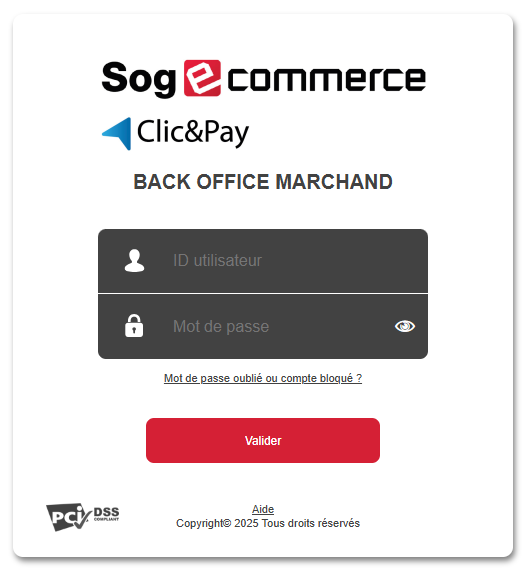
- Enter the login information provided in the password reset email and click Validate.
This email was sent by do_not_reply@sogecommerce.societegenerale.eu.
- Enter the security code, then click Next.
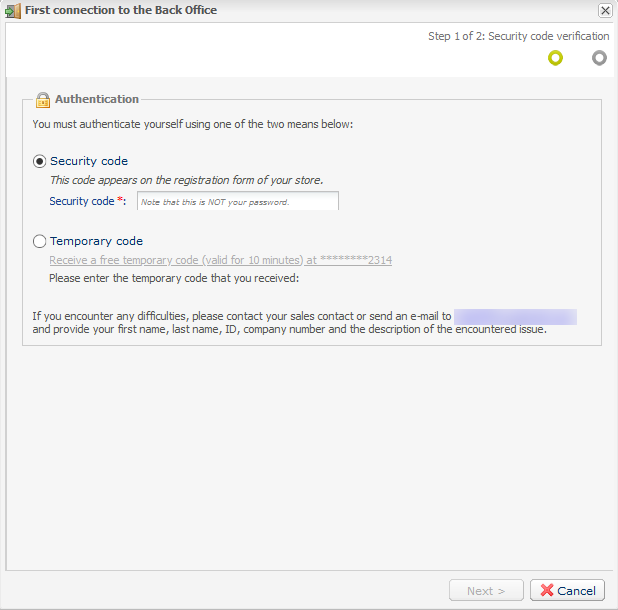
- If you don't know the security code, select Temporary Code via SMS.
This option is only available if you provided a valid mobile phone number when you registered. If not, please contact the store manager or your customer advisorSociété Générale to provide a valid phone number. You can then request a temporary code via text message.
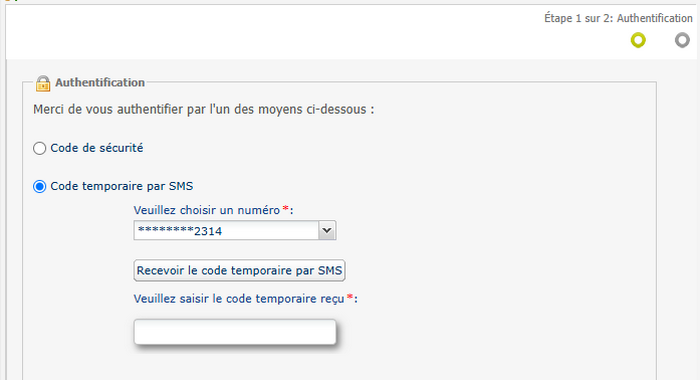
- Click Receive the temporary code via text message.
A temporary code will be sent to the mobile phone number associated with your user account.
If your account is linked to multiple phone numbers, you can choose which one to use.
- Enter the code you received via SMS, then click Next.
- Click Receive the temporary code via text message.
- If there is a problem with the phone number or for security reasons, the platform may send a temporary code to one of the store administrators. To do this, select Temporary code via email.
This tab is visible only if your user has the user management rights. Your user account cannot be the recipient. 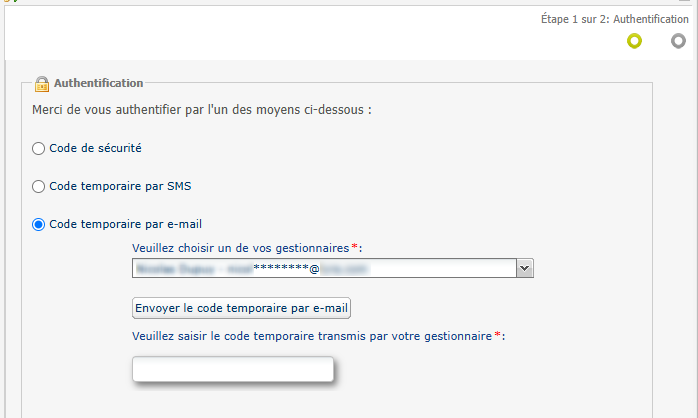
- Select the store manager and click Send temporary code via email.
- Select the store manager and click Send temporary code via email.
- Enter the code, then click Next.
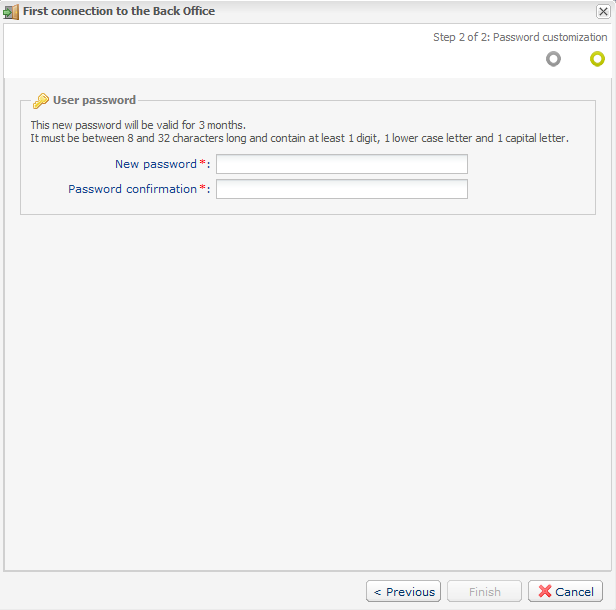
- Customize your new password according to the guidelines provided, then click Finish.